
You’ve seen the influencer photos. Dual curved monitors. Mechanical keyboards. $400 webcams. A Herman Miller chair positioned perfectly by a rain-streaked window.
That’s not a remote work setup. That’s a home studio.
If you’re building a real ‘work from anywhere setup’ — one that fits in a carry-on, works at a café in Lisbon, a coworking space in Chiang Mai, or your parents’ guest room — you don’t need any of that.
You need the right gear, chosen carefully, for under $500.
This guide breaks it down by category, prioritizes ruthlessly, and gives you a framework you can actually use. No fluff. No $200 cable recommendations.

Why Most Remote Work Gear Lists Are Completely Unrealistic
Most “remote work essentials” articles are written by people who never leave their apartment. They recommend gear that assumes you have a dedicated desk, a fast home internet connection, and no need to carry anything anywhere.
A real work-from-anywhere setup has different requirements. Weight matters. Portability matters. Battery life matters. And staying under budget matters more than having the sleekest gear on the shelf.
The goal isn’t a beautiful setup. The goal is a productive one — anywhere you open your bag.
The $500 Budget Framework (How to Allocate It)
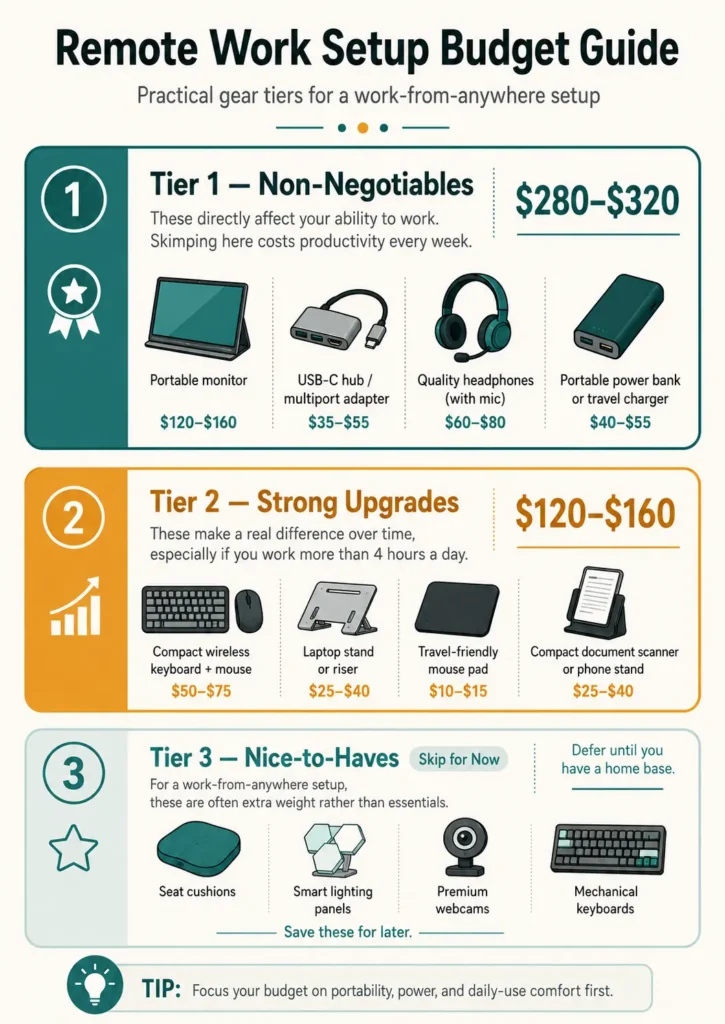
Before buying anything, decide how to split your budget. Here’s the framework that works:
Tier 1 — Non-Negotiables ($280–$320)
These are the items that directly affect your ability to work. Skimping here costs you hours of productivity every week.
Portable monitor: $120–$160. USB-C hub / multiport adapter: $35–$55. Quality headphones (with mic): $60–$80. Portable power bank or travel charger: $40–$55.
Tier 2 — Strong Upgrades ($120–$160)
These items make a real difference over time, especially if you work more than four hours a day.
Compact wireless keyboard and mouse combo: $50–$75. Laptop stand or riser: $25–$40. Travel-friendly mouse pad: $10–$15. Compact document scanner or phone stand: $25–$40.
Tier 3 — Nice-to-Haves (Skip for Now)
Ergonomic seat cushions, smart lighting panels, premium webcams, mechanical keyboards — save these for when you have a home base. For a work from anywhere setup, they’re dead weight.
The Core Gear Breakdown
Here’s what to actually buy — and what to look for in each category.
A Portable Monitor That Actually Fits in a Bag
This is your single highest-value purchase. A portable monitor turns any desk into a dual-screen setup in under two minutes. For remote workers who write, code, edit video, or manage spreadsheets, the second screen alone can add an hour of productive time per day.
What to look for: 15–16 inch display, USB-C powered (no separate power cable), under 1.8 lbs, IPS panel for decent color accuracy. Plenty of solid options land in the $120–$160 range from brands like Arzopa, Lepow, and Espresso.
Don’t buy a touchscreen version unless you specifically need it. The price jump rarely justifies the value for most remote workers.
A Keyboard and Mouse Worth Carrying
Your laptop keyboard works. But if you’re using a portable monitor and a laptop stand, you need an external keyboard and mouse to work comfortably.
Go wireless. Full-size isn’t necessary — a compact 75% or tenkeyless layout saves bag space without sacrificing usability. Logitech’s MX Keys Mini and the MX Anywhere 3 mouse are the most common picks in the remote worker community, and for good reason. Reliable, quiet, multi-device switching. Together they run about $120–$150 if you buy new, less if you catch a sale.
If budget is tight, Logitech’s MK470 slim wireless combo runs around $50 and performs well for everyday tasks.
Connectivity: Cables, Hubs, and Adapters
Modern laptops have two or three USB-C ports and not much else. A quality USB-C hub solves this without drama.
Look for a hub that includes: HDMI or DisplayPort output, at least two USB-A ports, an SD card reader, and pass-through charging. Brands like Anker, Ugreen, and Baseus make reliable options in the $35–$55 range.
Buy a hub that works with your specific laptop. Some Apple Silicon MacBooks have compatibility quirks with certain hubs — read reviews from users with the same machine before ordering.
Pack a short USB-C to USB-C cable as a backup. They’re cheap and save you when the café only has USB-A ports on the wall.
Audio: Headphones That Do Double Duty
You need headphones that block noise for focused work and deliver clear call audio for meetings. This rules out most cheap earbuds.
Over-ear active noise-canceling headphones are ideal. Sony’s WH-1000XM5 and Bose QuietComfort 45 are the standard recommendations — around $250–$280 new. If that’s over budget, the Sony WH-CH720N delivers solid noise cancellation for around $100.
For earbuds, the Sony WF-1000XM5 or Apple AirPods Pro 2 are compact enough for travel and handle noise cancellation and mic quality well. Budget option: Soundcore by Anker Q45 runs under $60 and punches well above its price.
Pick one pair. Don’t buy both over-ear and earbuds — that’s money better spent elsewhere in your work from anywhere setup.
Power: Don’t Get Stranded Without It
Power is the one thing that will actually stop your workday. Two items matter here.
First: a travel power strip or compact multi-outlet adapter. When coworking spaces have one outlet per table and three people trying to plug in, a small travel strip makes you the most popular person in the room. Look for surge protection and at least one USB-A and one USB-C port. Belkin and Tripp Lite make travel-sized versions for around $25–$40.
Second: a USB-C power bank with 20,000 mAh or more. This keeps your laptop, phone, and portable monitor running when you’re working from a location without guaranteed power access. Anker’s 737 Power Bank (PowerCore 24K) charges at 140W and covers most ultrabooks for a full session. Budget around $80–$100 for a bank that handles laptop charging.
The Software Layer (Free or Near-Free)
Your work from anywhere setup isn’t just hardware. Software determines whether your day runs smoothly or falls apart.
Task and Project Management
You don’t need to pay for project management software to be organized. Notion’s free plan handles notes, tasks, databases, and project tracking for solo workers. Trello’s free tier works for simpler visual boards. If you work with clients or teams, Linear or Asana offer free tiers that cover most use cases.
Pick one and stick with it. Switching tools wastes more time than any software limitation.
Communication Without the Chaos
Set boundaries on communication tools — they’re the biggest drain on remote work productivity. Keep Slack or Discord for team channels. Use a dedicated email client rather than living in a browser tab. Turn off notifications for everything except genuine urgencies.
One tool that helps: Krisp. It’s a noise-canceling software layer for your microphone — useful when you’re working in loud cafés and don’t have premium ANC headphones. The free plan covers roughly 60 minutes of noise cancellation per week. The paid plan runs about $96 per year.
One Real Setup. One Real Budget.
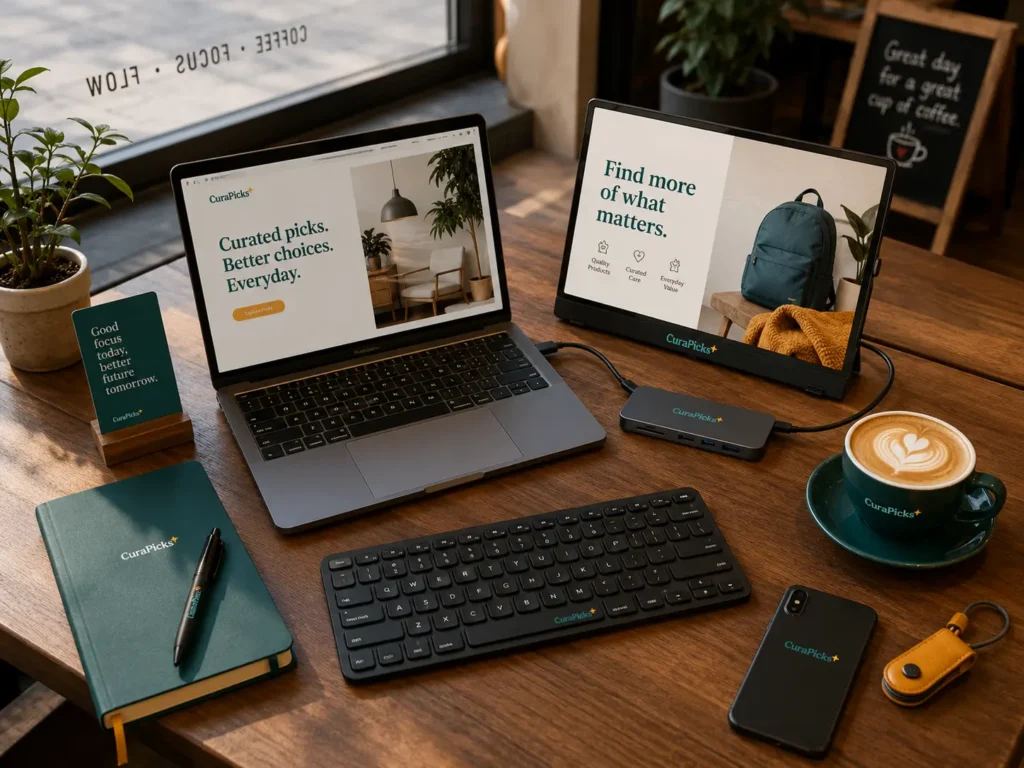
Here’s what a complete work-from-anywhere setup looks like at the $500 mark:
Portable monitor (15.6″, USB-C, IPS): ~$140. Logitech MK470 wireless keyboard + mouse combo: ~$50. Anker USB-C 7-in-1 hub: ~$45. Sony WH-CH720N headphones: ~$100. Belkin travel power strip: ~$35. Anker 20,000 mAh USB-C power bank: ~$70. Short USB-C cables (2-pack): ~$15. Laptop riser (foldable): ~$30.
Total: ~$485
That’s a complete, travel-ready, productive remote setup with $15 left for a decent coffee. Every item fits in a standard 25L daypack alongside a 14-inch laptop.
Start with Tier 1 and add from Tier 2 as your budget allows. You’ll have a fully functional setup long before you hit $500.
What’s Next?
Building your gear is one thing. Actually making the leap to remote work full-time is another. If you’ve been thinking about leaving your corporate job — or you’ve already made the jump — the real questions are about mindset, timing, and practical steps.
👉 Read next: How I Quit My Corporate Job at 50 to Work Remotely