
You’ve seen the posts. “I automated my entire business with AI.” “I saved 10 hours a week using no-code tools.” It sounds great — until you actually try to figure out where to start.
Most beginner guides throw you straight into ChatGPT API keys and complex multi-step workflows. That’s not this guide.
This is about building your very first no-code AI automation today — with free tools you probably already use, in under an hour, with a result you’ll actually see working.
We’re connecting Google Forms, Google Sheets, and Slack using Zapier. No credit card. No code. No prior experience required.

What No-Code AI Automation Actually Means
Let’s clear up the term before we build anything.
“Automation” just means software doing a repetitive task instead of you. “No-code” means you configure it visually — with clicks and dropdowns, not programming. “AI” gets added when you want the workflow to think, not just move data.
For your first build, we’re keeping it pure automation — no AI layer yet. That’s intentional. Understanding the trigger-action foundation first makes everything that comes later (including AI steps) much easier to grasp.
Think of Zapier as the connector. It watches for something to happen in one app (the trigger) and immediately does something in another app (the action). That’s the entire mental model you need.
Why This Example Works for Complete Beginners
There are dozens of automations you could build. This one is the best starting point for three reasons.
You already know the tools. Google Forms, Google Sheets, and Slack are used by millions of freelancers, bloggers, and remote workers every day. There’s no learning curve on the apps themselves.
The result is immediate and visible. The moment you submit a test form, your Slack buzzes with a notification. You don’t have to wait or wonder if it worked. You see it happen.
It costs nothing. Zapier’s free plan handles this workflow completely. No API keys, no paid tiers, no trial periods to track.
Once you’ve built this, the logic transfers to every other automation you’ll ever create.
What You’ll Need (All Free)
Before you start, open these four things:
Zapier account — free plan is enough. Sign up at Zapier if you don’t have one. You get five Zaps and 100 tasks per month at no cost.
Google account — for Google Forms and Google Sheets. You almost certainly already have this.
Slack workspace — free plan works. If your team uses Slack, use that. If not, create a personal workspace in two minutes. It’s free.
About 45 minutes — the first run takes longer because you’re learning the interface. The second automation you build will take 15 minutes.
That’s the complete list.
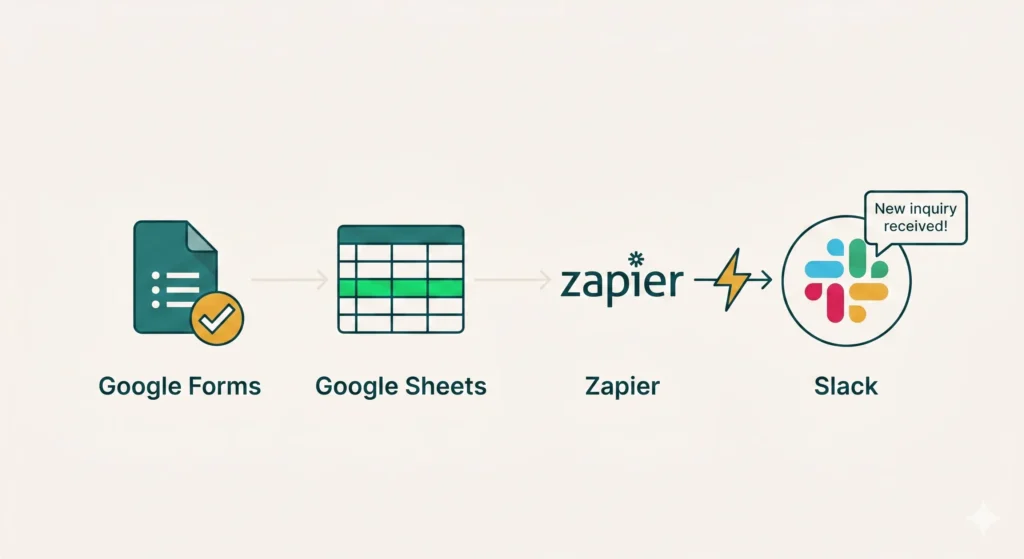
The Workflow We’re Building
Here’s the exact sequence:
Someone fills out a Google Form → the response saves automatically to a linked Google Sheet (Google does this natively) → Zapier detects the new row in the Sheet → Zapier sends a Slack message with the form details.
Practical use case: a freelancer’s client inquiry form. Every time a potential client submits their name, project type, and budget, you get a Slack notification instantly — no need to keep checking email or your form dashboard.
You can swap this for anything: a newsletter signup form, an event registration, a feedback form, a job application tracker. The structure is identical.
Step 1 — Create Your Google Form
Open Google Drive, click New → Google Forms, and create a simple form. For this tutorial, use three fields: Name, Email, and Message (or Budget, Project Type — whatever fits your use case).
Once the form is built, click the Responses tab at the top, then click the green Sheets icon. This creates a linked Google Sheet that automatically captures every response as a new row. Name the sheet something clear like “Form Responses – Client Inquiries.”
Submit a test response yourself so you have sample data to work with in Zapier. You’ll need at least one row in the Sheet before the next step.
Step 2 — Set Up Zapier and Connect Google Sheets
Log into Zapier and click Create Zap.
For the Trigger, search for Google Sheets and select it. Under Trigger Event, choose New Spreadsheet Row. This fires every time a new row appears in your Sheet — which happens every time someone submits your form.
Click Sign in to Google Sheets and authorize the connection. Select your spreadsheet and the correct sheet tab (usually “Form Responses 1” or whatever you named it).
Click Test Trigger. Zapier pulls in the sample row you submitted earlier. You’ll see each form field as a separate data point — Name, Email, Message. These become the variables you can insert anywhere in your workflow.
Step 3 — Add Slack as the Notification Action
Click the + button to add an Action. Search for Slack and select it.
Under Action Event, choose Send Channel Message.
Connect your Slack account and authorize Zapier. Select the channel where you want notifications to appear. A dedicated channel like #new-inquiries or #form-responses keeps things clean. You can create the channel directly in Slack before this step if needed.
Now write your message. In the Message Text field, build it like this:
New inquiry received!
Name: [Name field from trigger]
Email: [Email field from trigger]
Message: [Message field from trigger]
Click the + icon next to the field to insert the dynamic variables from your Google Sheets trigger. Zapier will slot in the actual submitted values each time the Zap fires.
Keep the message short and scannable — this is a notification, not a report.
Step 4 — Test It and Turn It On
Click Test Action. Zapier sends a test message to your Slack channel using the sample data.
Check Slack. The message should appear within seconds. If it looks right — correct channel, correct data, readable format — you’re done.
If something’s off, go back and adjust the message format or check that you selected the right spreadsheet. The most common issue is selecting the wrong sheet tab or forgetting to submit a test response in Step 1.
Once the test passes, click Publish Zap. The automation is live.
Submit another test response through your actual Google Form. Watch Slack. The notification should arrive within about 15 seconds.
That’s your first no-code AI automation running in the real world.

What to Build Next (With and Without AI)
Now that you understand the trigger-action loop, here’s where it gets interesting.
Add a ChatGPT step. Between the Google Sheets trigger and the Slack action, insert a ChatGPT action. Prompt it to summarize the inquiry, assess the budget range, or draft a suggested reply. Your Slack notification then includes an AI-generated response draft — ready to copy, edit, and send.
Upgrade the output. Instead of (or in addition to) Slack, send the data to Notion, Airtable, or a CRM. Build a proper lead database that populates automatically.
Add filters. In Zapier, you can add a Filter step that only continues if a condition is met — for example, only send a Slack alert if the budget field is above a certain amount.
Duplicate the structure for other forms. Once you’ve built one Zap, cloning and adapting it takes five minutes. Newsletter signups, event registrations, product feedback — same logic, different apps.
Each variation builds on exactly what you just learned. The no-code AI automation muscle develops fast once you’ve got the foundation.
The Hardest Part Is Just Starting
The biggest barrier to automation isn’t technical. It’s the mental hurdle of sitting down and actually doing it for the first time.
Most people read about automation, bookmark the tools, and then go back to doing things manually. Not because it’s too hard — but because starting feels uncertain.
This workflow removes that uncertainty. You know exactly what you’re building, what each step does, and what the result looks like before you even open Zapier.
So here’s the move: open Zapier in a new tab right now. Create the form. Submit a test. Watch Slack light up.
Twenty years from now, the people who built leverage early — systems that run while they sleep — will be glad they started on a random Tuesday afternoon.
You’ve got the afternoon. Go build it.
What’s Next?
You’ve built your first automation— a real workflow running quietly in the background while you focus on other things. That’s the foundation.
Now let’s zoom out. How do the most productive solopreneurs structure their entire day around AI — not just one tool, but a full morning system?
In the next post, we break down a real AI-powered morning routine built for one-person businesses: the exact tools, the order, and why it works.
👉 Read next: My Morning Routine Powered by AI: A Solopreneur’s Setup